


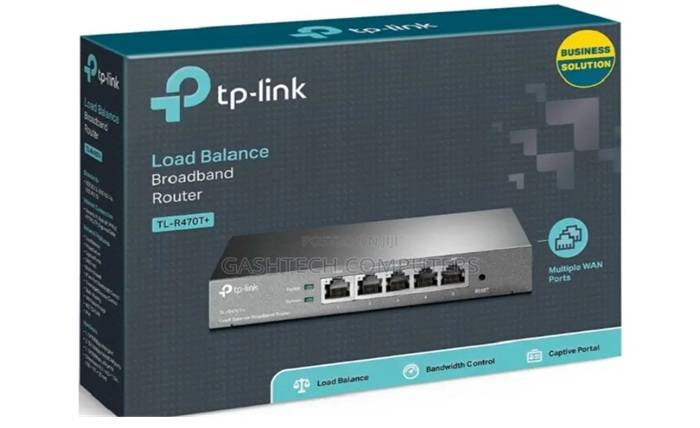
A reliable internet connection now sits at the centre of daily life. It carries school assignments, remote work, mobile banking notifications, streaming and video calls with family abroad. When the Wi-Fi drops in the bedroom or slows to a crawl every evening, the problem is often not the internet package but the router that distributes it around the house.
TP-Link is one of the most widely available networking brands, and its range covers everything from basic home routers to mesh systems and business access points. That variety is helpful, but it also makes choosing the right model confusing. This guide walks through the main router types, the specifications that matter and the setup and security habits that keep a network fast and safe.
Start with how your internet reaches you
The first question is not which router is best, but what kind of connection you have. Many homes and offices in Kenya now use fibre, where the provider installs a terminal that hands over the connection through an Ethernet port. Others rely on mobile data through a SIM card, especially in areas where fibre has not yet arrived or for people who move between locations. Some providers also supply their own router, which you may want to replace or supplement if coverage is poor.
Your connection type determines which kind of router you need, and your home’s size and number of users determine how powerful it should be. Once you have those answers, it is worth comparing current offers on a TP Link router from several sellers and checking the exact model number, since similar-looking units can differ significantly in features.
Understanding TP-Link router types
Wi-Fi routers for fibre and Ethernet connections
These routers connect to your provider’s terminal or modem by cable and create your home Wi-Fi network. TP-Link’s main line of home routers is the Archer series, which spans entry-level models for small flats up to high-performance units for larger homes and heavy users. If you already have fibre, this is usually the category to consider.
4G and 5G SIM routers
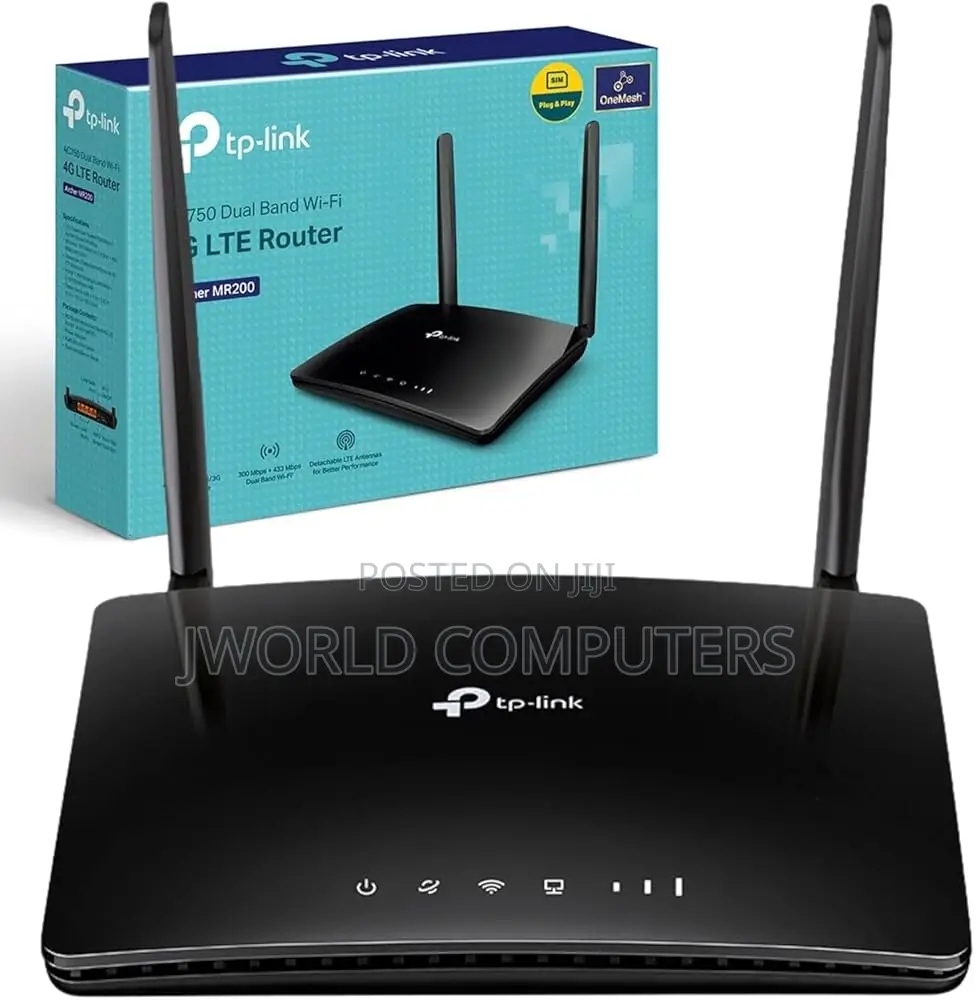
SIM routers take a mobile network SIM card and share that connection over Wi-Fi and, often, Ethernet ports. They are useful where fixed lines are unavailable, for temporary offices, rental homes and as a backup connection. Check that the router supports the frequency bands used by your mobile network, confirm whether it is locked to any operator and remember that performance depends heavily on signal strength where you place it.
Mesh Wi-Fi systems
A mesh system uses two or more units working together as a single network. TP-Link’s mesh range is sold under the Deco name. Mesh suits larger houses, multi-storey homes and buildings with thick concrete or stone walls, because the units pass traffic between each other and your devices move between them automatically under one network name.
Range extenders and access points
A range extender repeats an existing Wi-Fi signal to reach a dead spot. It is an inexpensive fix for one troublesome room, but it can reduce speeds because it must receive and retransmit data. Access points, by contrast, connect to the router by cable and create a strong signal wherever you place them. In offices, schools and guest houses, several wired access points often give more consistent coverage than a single powerful router.
Wi-Fi standards in plain language
Wi-Fi generations are now named with simple numbers.
- Wi-Fi 5 is still common and adequate for many homes with moderate internet speeds.
- Wi-Fi 6 is designed to handle many connected devices more efficiently, which helps households with several phones, laptops, TVs and smart devices.
- Wi-Fi 6E adds access to the 6 GHz band, which can be less congested, although only newer devices can use it and availability can depend on local regulations.
- Wi-Fi 7 is the newest generation, aimed at very high speeds and low latency. It is most useful if you have fast internet and recent devices that support it.
A newer router still works with older devices, but those devices will connect at their own older standard. There is little point paying for the latest generation if your internet package is modest and your phones and laptops are several years old.
Dual-band, tri-band and coverage
Dual-band routers broadcast on 2.4 GHz and 5 GHz. The 2.4 GHz band travels further and passes through walls better but is slower and more crowded. The 5 GHz band is faster over shorter distances. Tri-band routers add another band, which helps busy households or mesh systems keep traffic flowing smoothly.
Manufacturers often give coverage estimates, but walls, floors and building materials change real-world results considerably. As a rough guide:
- A studio or one-bedroom flat is usually served well by a single good dual-band router.
- A larger apartment or bungalow may need a stronger router or one extender or access point.
- A multi-storey house, maisonette or building with thick walls is often better served by a mesh system.
Also think about how many devices connect at once. Families with many phones, smart TVs, cameras and laptops benefit from Wi-Fi 6 or newer and a router with more processing power.
Buying tips: genuine units and warranty
- Check the model and hardware version on the label underneath the router and match them to the packaging.
- Look for proper packaging and accessories, including the correct power adapter. A weak or unsuitable adapter can cause random restarts.
- Ask about warranty and who handles repairs or replacements, and keep your receipt.
- For used units, ask the seller to factory-reset the router in front of you, check that all ports work and confirm that it still receives firmware updates.
- For SIM routers, test with your own SIM card before paying to confirm it is not locked to another network.
Setting up with the Tether and Deco apps
Most TP-Link routers can be configured from a web browser, but the Tether app makes setup on a phone straightforward. Deco mesh systems are set up through the Deco app, which guides you through placing and adding each unit. In both cases, the typical steps are:
- Connect the router to your fibre terminal or insert your SIM card, then power it on.
- Connect your phone to the default Wi-Fi network printed on the router’s label.
- Open the app, create or sign in to your account and follow the prompts to choose your connection type.
- Set a new network name and a strong Wi-Fi password.
- Check for firmware updates before you finish.
Security essentials
- Change the default admin password used to log in to the router, not just the Wi-Fi password.
- Use WPA2 or, where all your devices support it, WPA3 encryption. Avoid open networks and outdated options such as WEP.
- Install firmware updates regularly, as they fix security weaknesses and bugs.
- Create a guest network for visitors and customers so they cannot see your computers, printers or cameras.
- Use parental controls to set time limits or filter content for children’s devices, where the model supports them.
- Disable features you do not use, such as remote management or WPS.
Placement and power protection
Where you put the router matters as much as the model. Place it centrally and in the open, raised off the floor, away from thick walls, large metal objects and microwaves. Avoid hiding it inside a cabinet or behind the television. For mesh systems, position units within good range of each other rather than at the extreme ends of the house.
Power fluctuations and outages can damage electronics or cause frequent restarts. A surge protector is a sensible minimum, and a small uninterruptible power supply (UPS) can keep your router and fibre terminal running during short outages, so your connection stays available for calls and work.
Simple care and troubleshooting
Routers need little maintenance, but a few habits help. Keep the unit dust-free and well ventilated, because overheating can cause slowdowns and dropped connections. If speeds suddenly fall, restart the router and your provider’s terminal, then test with a device connected by cable to see whether the problem lies with the internet line or the Wi-Fi. The Tether and Deco apps can show connected devices, so check for unfamiliar ones and change your Wi-Fi password if you find any. Finally, write down your admin login details and keep them somewhere safe, so a forgotten password does not force a full reset and reconfiguration.
The bottom line
The best TP-Link router for you depends on your connection, your space and your devices. Choose an Archer router for fibre or Ethernet connections, a SIM router where fixed lines are unavailable, a Deco mesh system for large or multi-storey homes and access points for offices. Match the Wi-Fi standard to your devices and internet speed rather than buying the newest label by default. Buy genuine units with a clear warranty, set them up with the official apps, secure them properly and place them thoughtfully, and your network will be faster, safer and far less frustrating.